How to connect devices to the Onseo VPN network
Please select an operating system:
Connecting to Onseo VPN network on Windows:
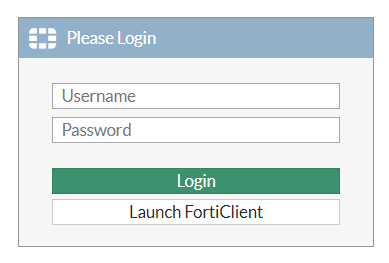
2. Enter your domain credentials (without SEO\) and press the "Login" button:
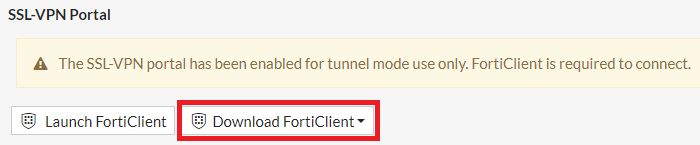
3. Click the "Download FortiClient" button:
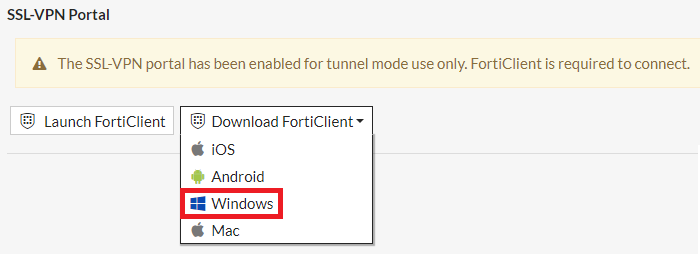
4. Click the "Windows" button:
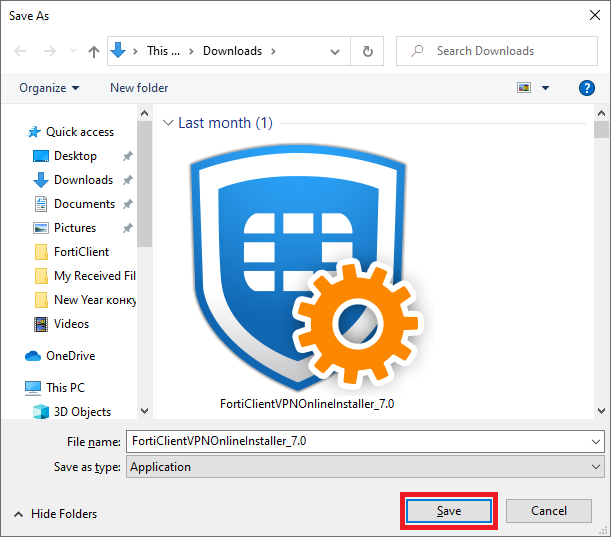
5. Click "Save" button:
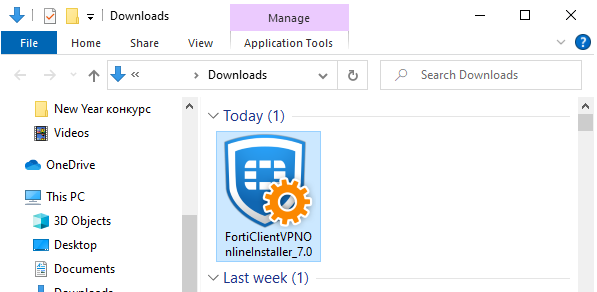
6. Run installer:
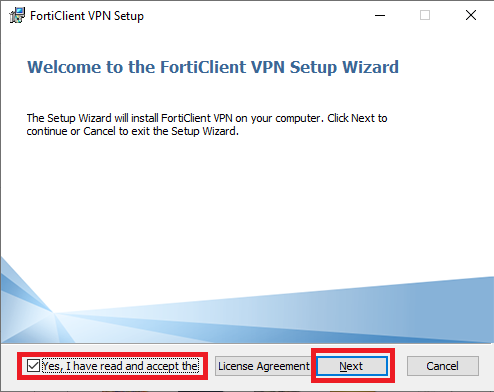
7. Check "Yes, I have read the License agreement" and click "Next" button:
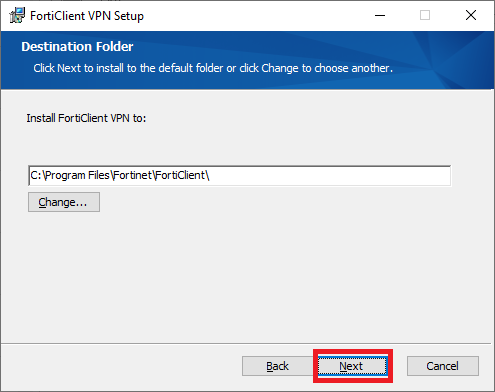
8. Click "Next" button:
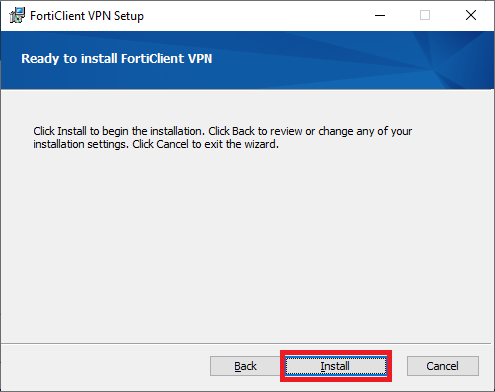
9. Click "Install" button:
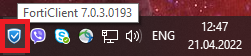
10. Run FortiClient app from tray icon:
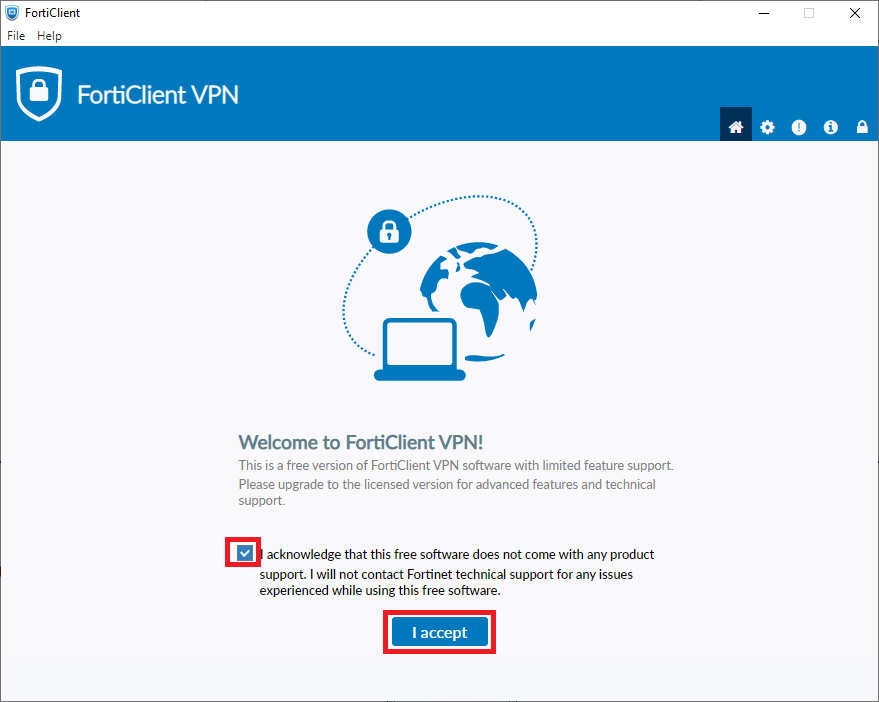
11. Ckeck the checkbox and click "I accept" button:
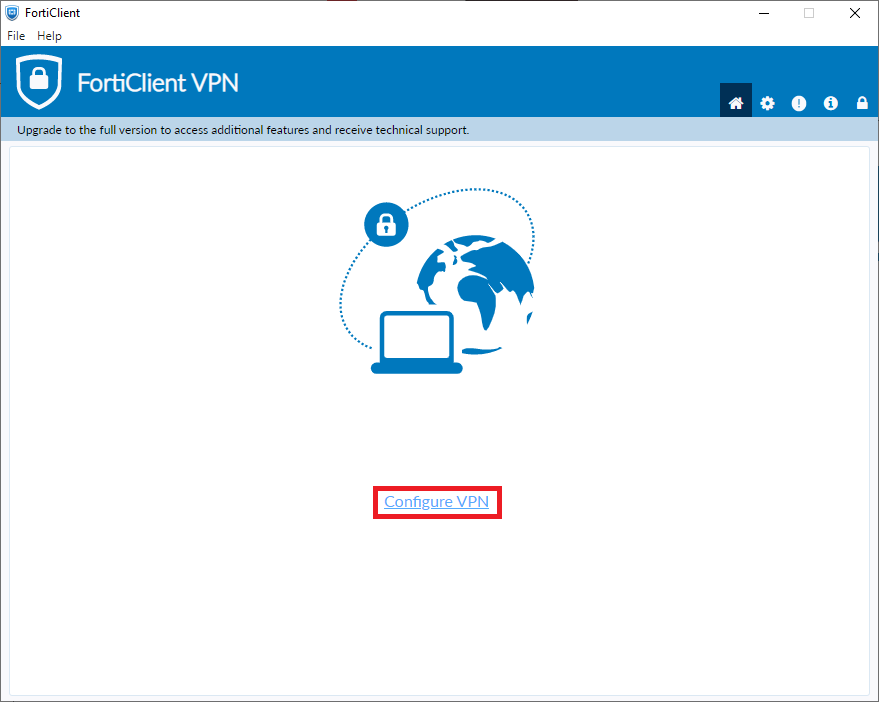
12. Click "Configure VPN" link:
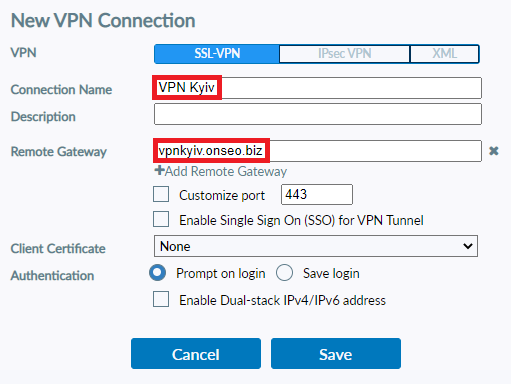
13. Fill the form as shown below and click "Save" button:
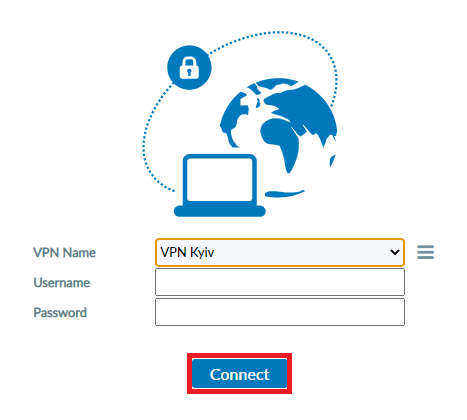
14. Enter your domain credentials (without SEO\) and press the "Connect" button:
If you want to disconnect vpn session:
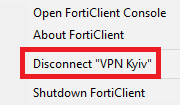
1. Press the tray icon, shown on the image below and click "Disconnect VPN Kyiv":
Connecting Mac OS devices to the Onseo VPN network
2. Enter your domain credentials (without SEO\) and press the "Login" button:
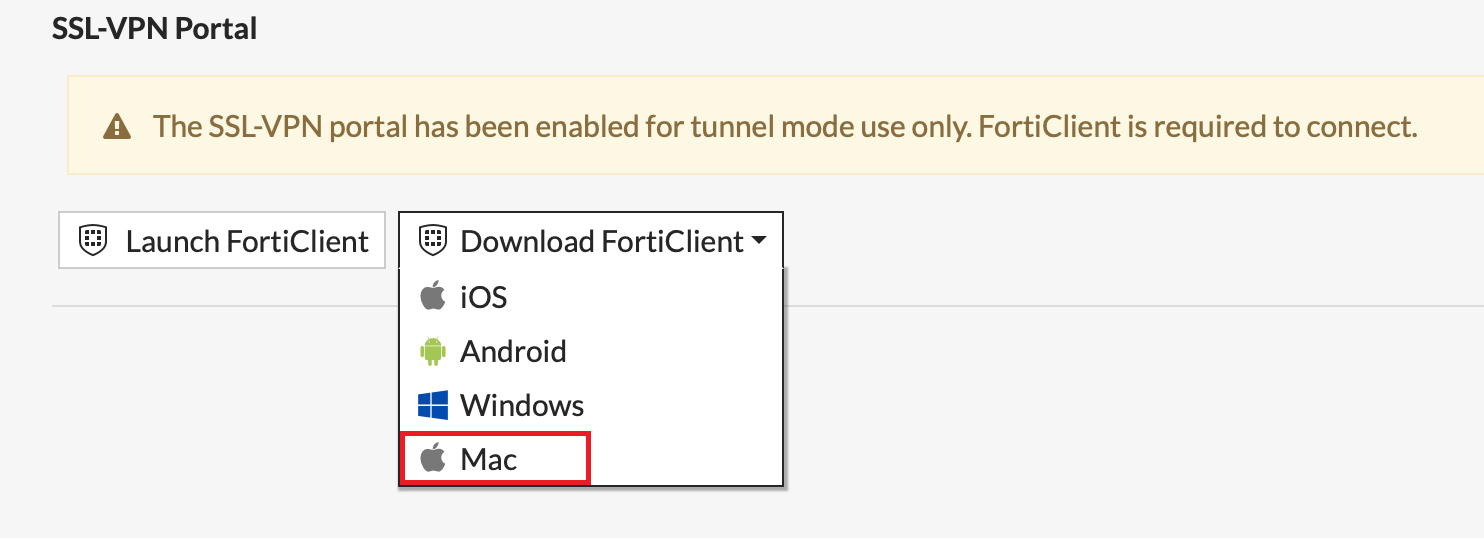
3. Click the "Download FortiClient" button:
4. Click the "Mac" button:
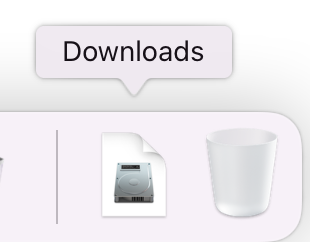
5. Click the "Downloads" button:
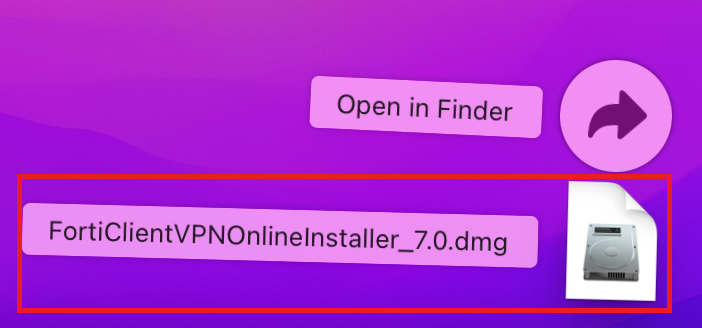
6. Choose "Online Installer" item:
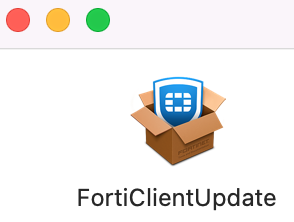
7. Choose "FortiClientUpdate" item:
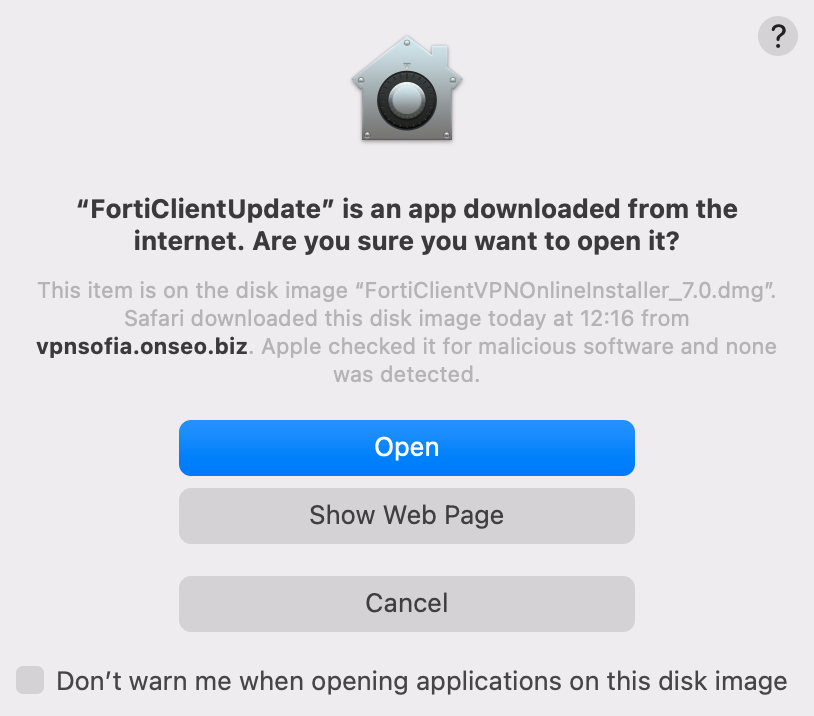
8. Click the "Open" button:
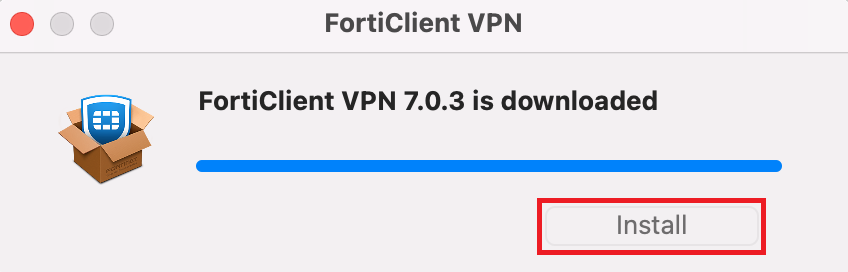
9. Click the "Install" button:
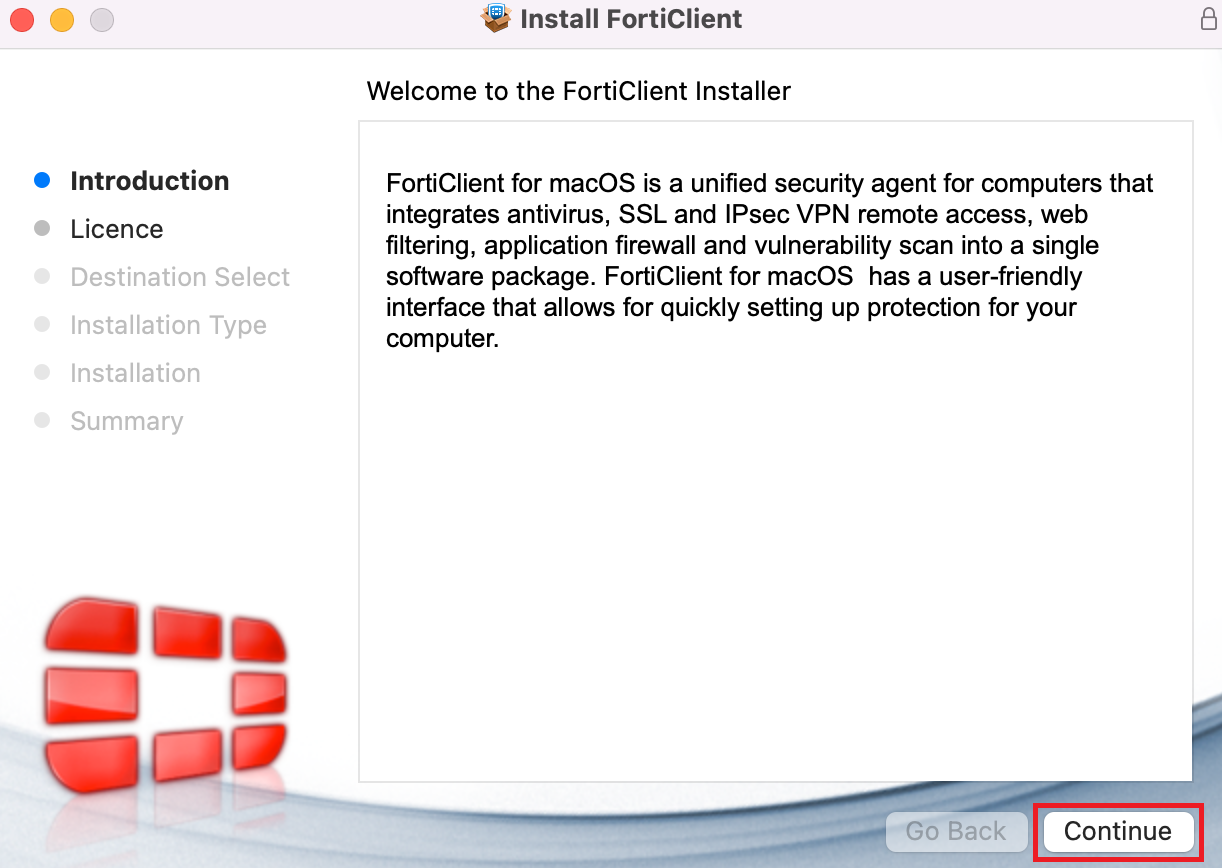
10. Click the "Continue" button:
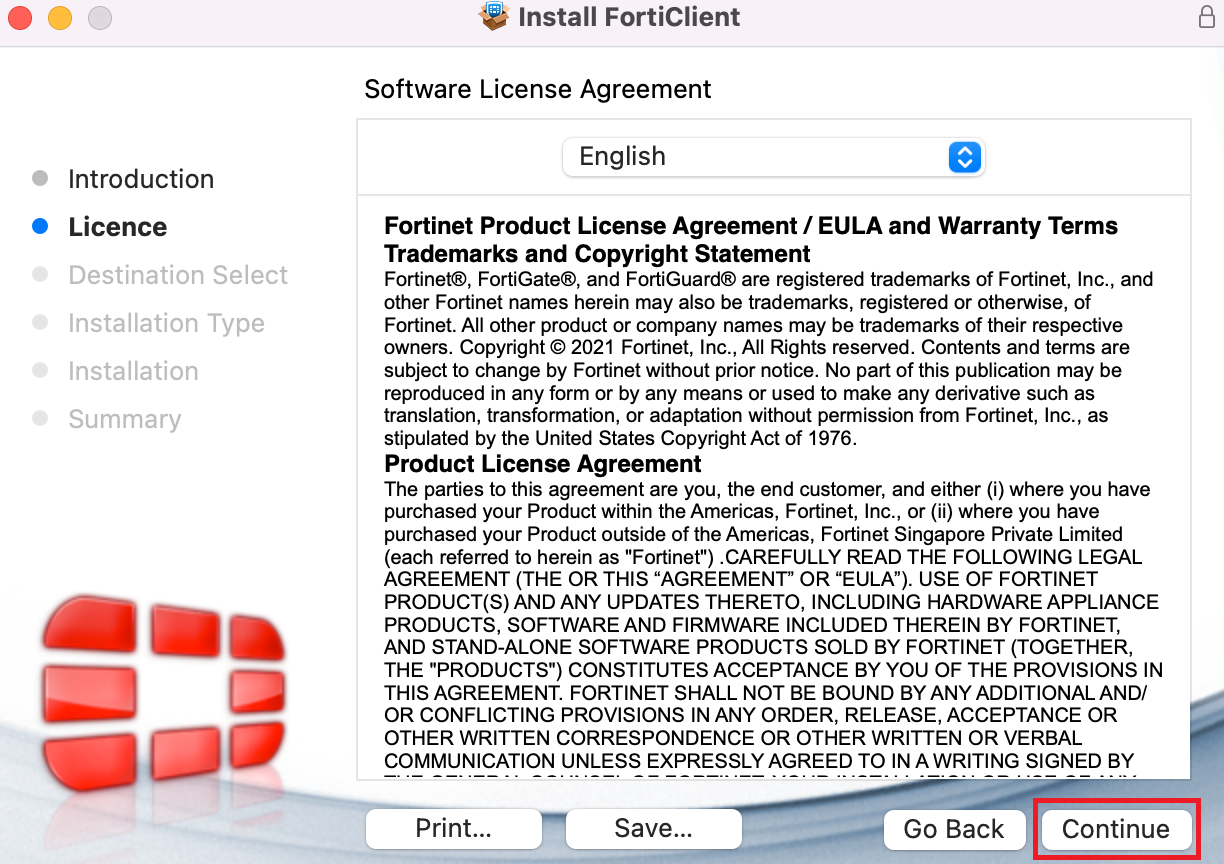
11. Click the "Continue" button:
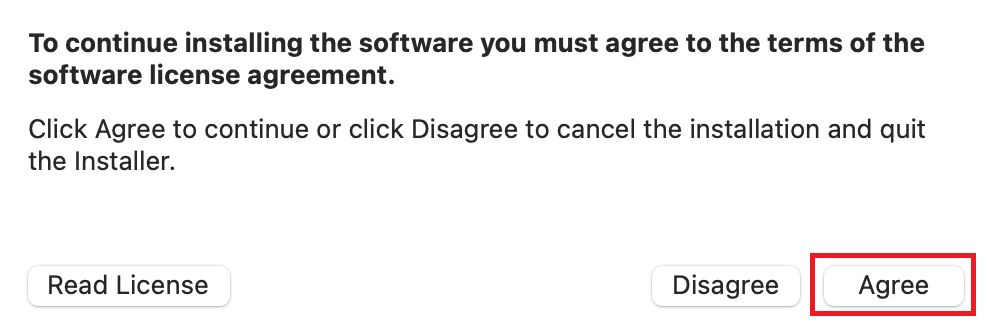
12. Click the "Agree" button:
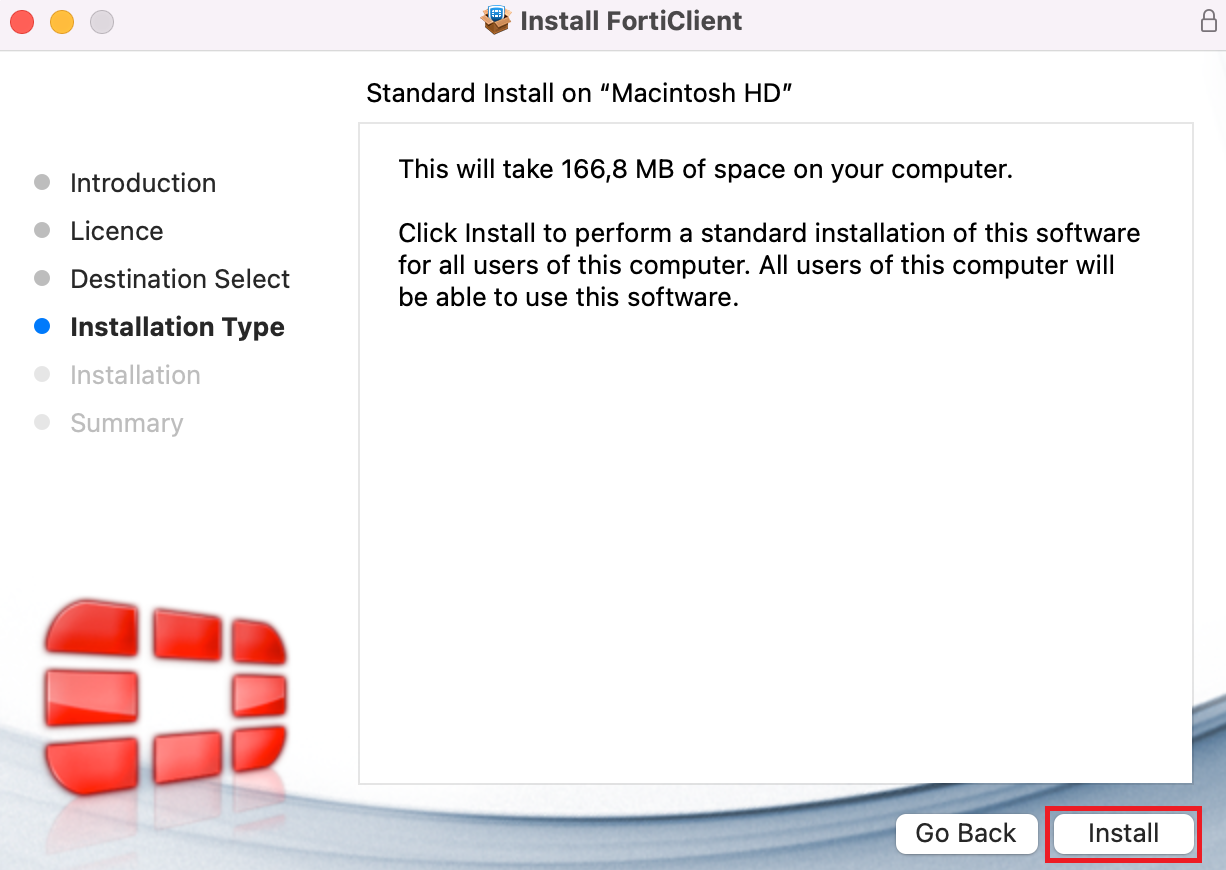
13. Click the "Install" button:
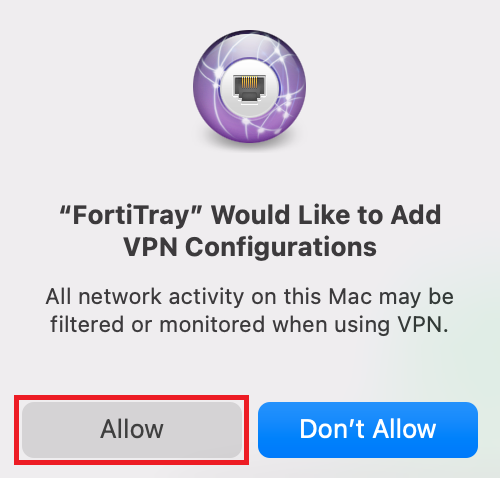
14. Click the "Allow" button:
15. Click the "FortiClient" icon:
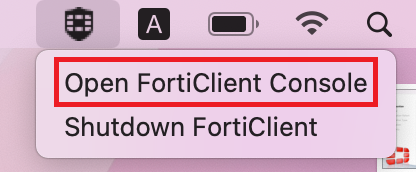
16. Click "Open FortiClient Console":
17. Ckeck the checkbox and click "I accept" button:
18. Click "Configure VPN" link:
19. Fill the form as shown below and click "Save" button:
20. Enter your domain credentials (without SEO\) and press the "Connect" button:
If you want to disconnect vpn session:
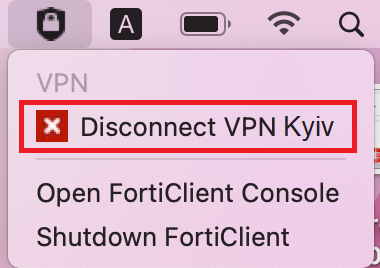
1. Press the tray icon, shown on the image below and click the "Disconnect VPN Kyiv" button:


 Windows
 Mac OS