How to connect devices to the Onseo VPN network
Please select an operating system:
Connecting to Onseo VPN network on Windows:
2. Download file to your PC shown below:
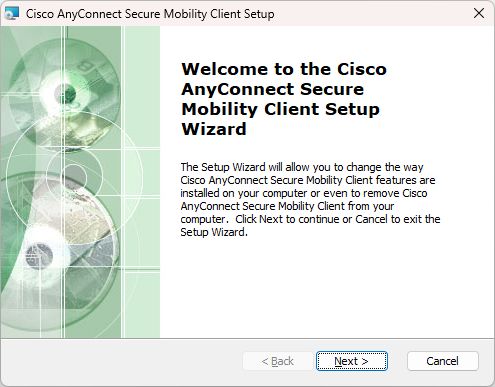
3. Run the install package:
4. Complete installation process:
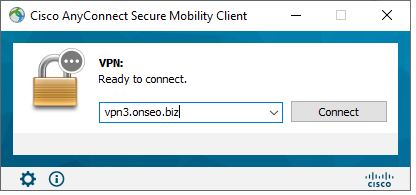
5. Type in vpn3.onseo.biz and press the "Connect" button:
If you want to disconnect vpn session:
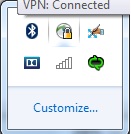
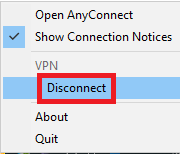
1. Press the tray icon, shown on the image below:
2. Click the "Disconnect" button:
Connecting Android devices to the Onseo VPN network
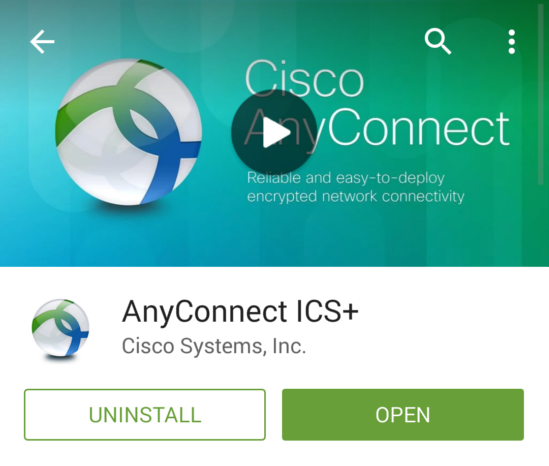
1. Download from the Google Play Cisco AnyConnect ICS+ app
2. After installation of the Cisco AnyConnect ICS+ app go to the Apps menu  and tap on the AnyConnect icon
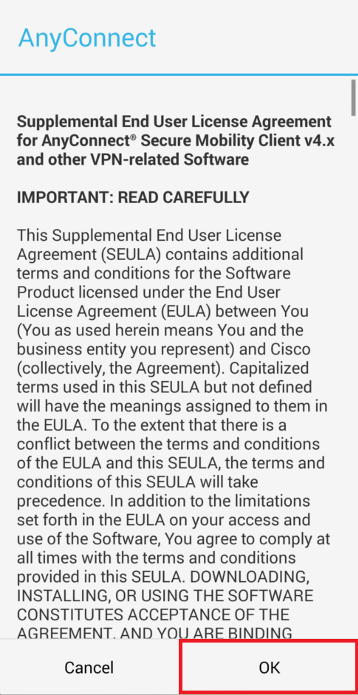
3. Read "End User License Agreement" and press the "OK" button
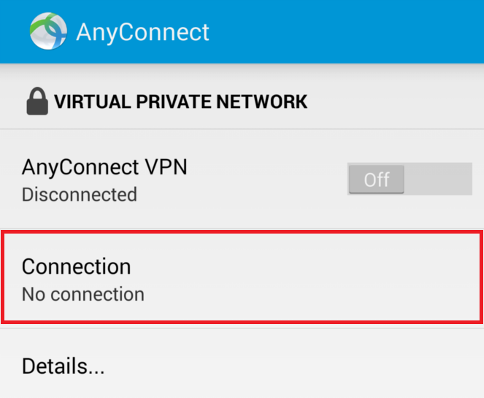
4. Tap the "Connection" button
5. Tap the "Add new VPN Connection..." button
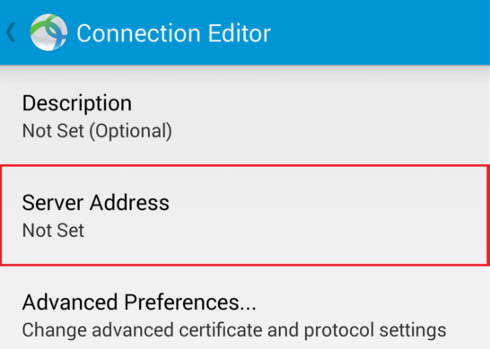
6. Tap the "Server Address" button
7. Enter "vpn3.onseo.biz" into the form shown below and tap the "OK" button:
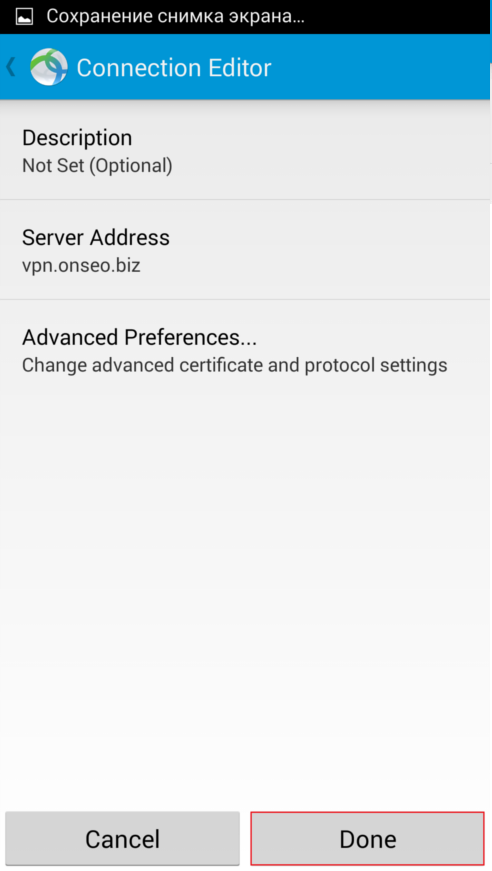
8. Tap the "Done" button:
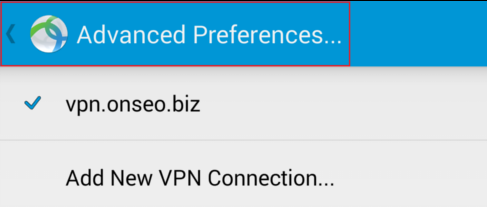
9. Tap the "Advanced Preferences..." button:
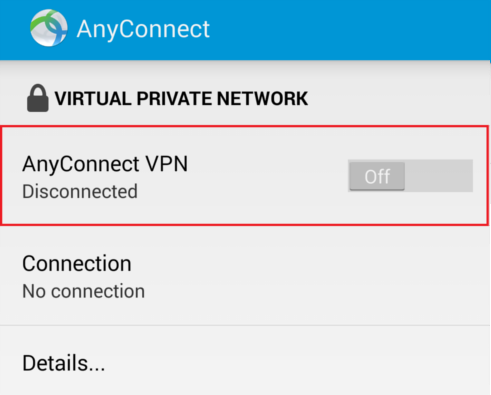
10. Tap the "AnyConnect VPN" button:
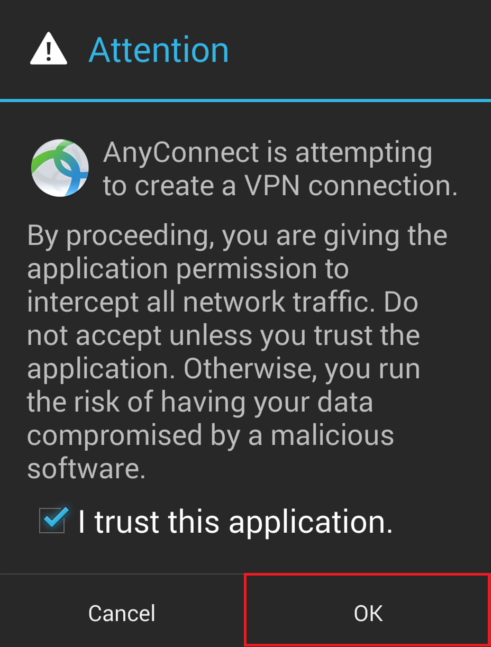
11. Check "I trust this application" and tap the "OK" button:
12. Enter your domain credentials (without \SEO) into the form shown below and tap the "Connect" button:
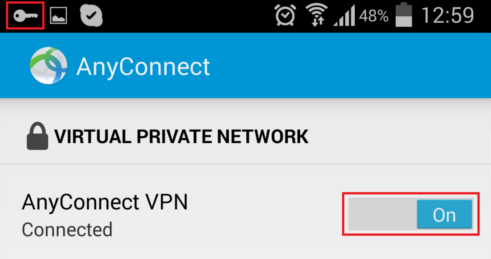
13. If all steps done properly, the "key" icon appears and the "AnyConnect VPN" button switches to "On" position.
If you want to disconnect vpn session:
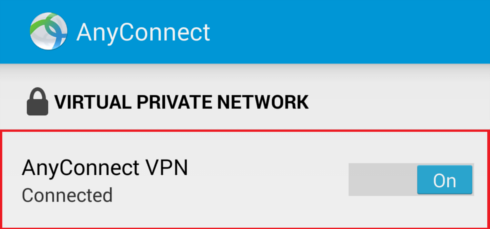
1. Open the AnyConnect app and tap the "AnyConnect VPN" button:
Connecting IOS devices to the Onseo VPN network
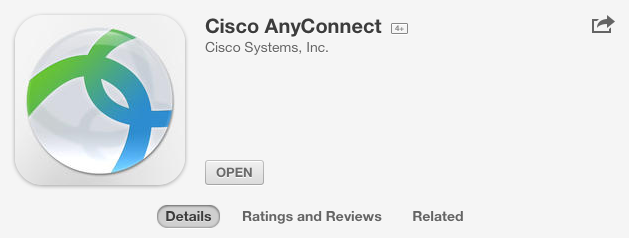
1. Download from the App Store Cisco AnyConnect app
2. After installation of the Cisco AnyConnect app tap on the AnyConnect icon 
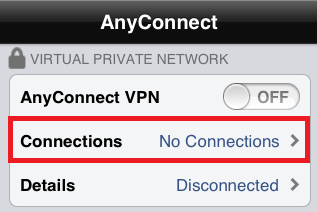
3. Tap the "Connections" button
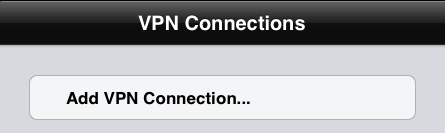
4. Tap the "Add VPN Connection..." button
5. Enter "vpn3.onseo.biz" into the form shown below and tap the "save" button:
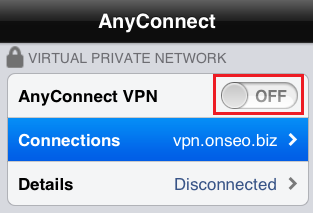
6. Tap the "Off" switch button:
7. Enter your domain credentials (without \SEO) into the form shown below and tap the "Connect" button:
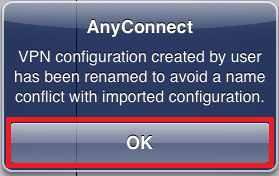
8. Tap the "OK" button:
9. If all steps done properly, the "VPN" icon appears and the "AnyConnect VPN" button switches to "On" position.
If you want to disconnect vpn session:
1. Open the AnyConnect app and tap the "AnyConnect VPN" button:
Connecting Mac OS devices to the Onseo VPN network
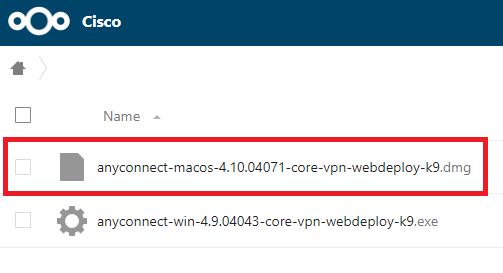
2. Download file to your PC shown below:
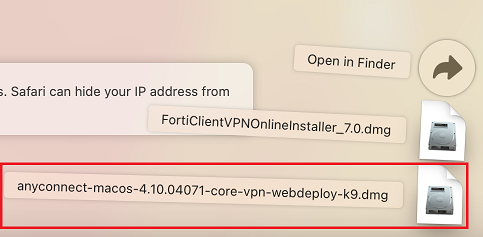
3. Find file shown below in "Downloads" section:
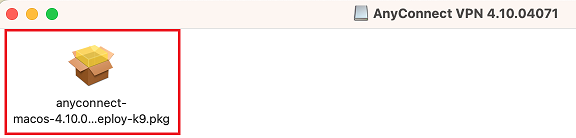
4. Run the install package:
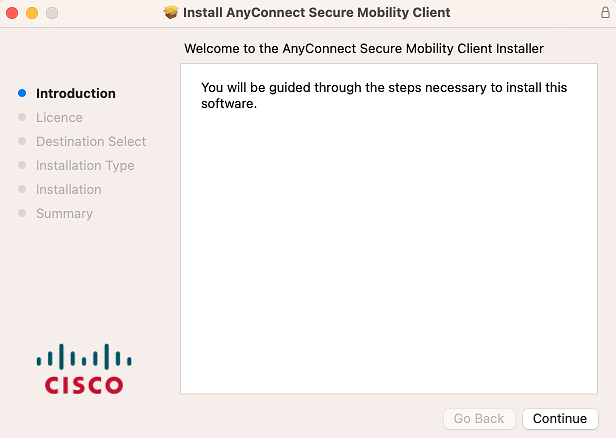
5. Complete installation process:
6. Type in vpn3.onseo.biz and press the "Connect" button:
If you want to disconnect vpn session:
1. Press the tray icon, shown on the image below and click the "Disconnect" button:
 Windows
 Android
 IOS
IOS Mac OS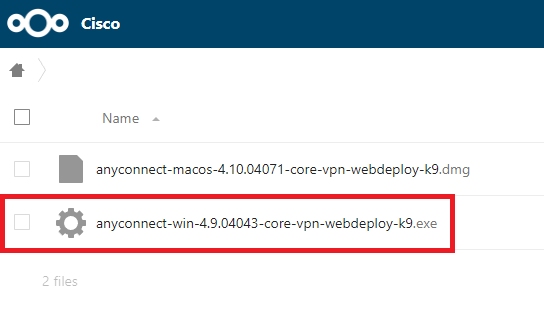



.png)
.png)
.png)
.png)
.png)
.png)
.png)